
Understanding Ad Tag Audit Results
AdMeIn Ad Tag Audit results summarize how your creative loads, how heavy it is, and whether it meets common ad policy and performance thresholds. This guide explains each section so you can quickly spot issues and fix them.
Run an audit
- Open the Ad Tag Tester
- Paste your tag and click Run Analyzer
- When the test completes, the audit panels appear under the preview
What you will see
The audit output is grouped into three main areas:
- Ad Tag Preview: A live rendering of your ad tag in the sandbox environment that replicates how it would execute on a publisher's site
- Resource Request Metrics: Timing and performance signals from the ad execution
- Recommended Ad Policy Tests: Compliance checks like total size, HTTP calls, and clickTag rules
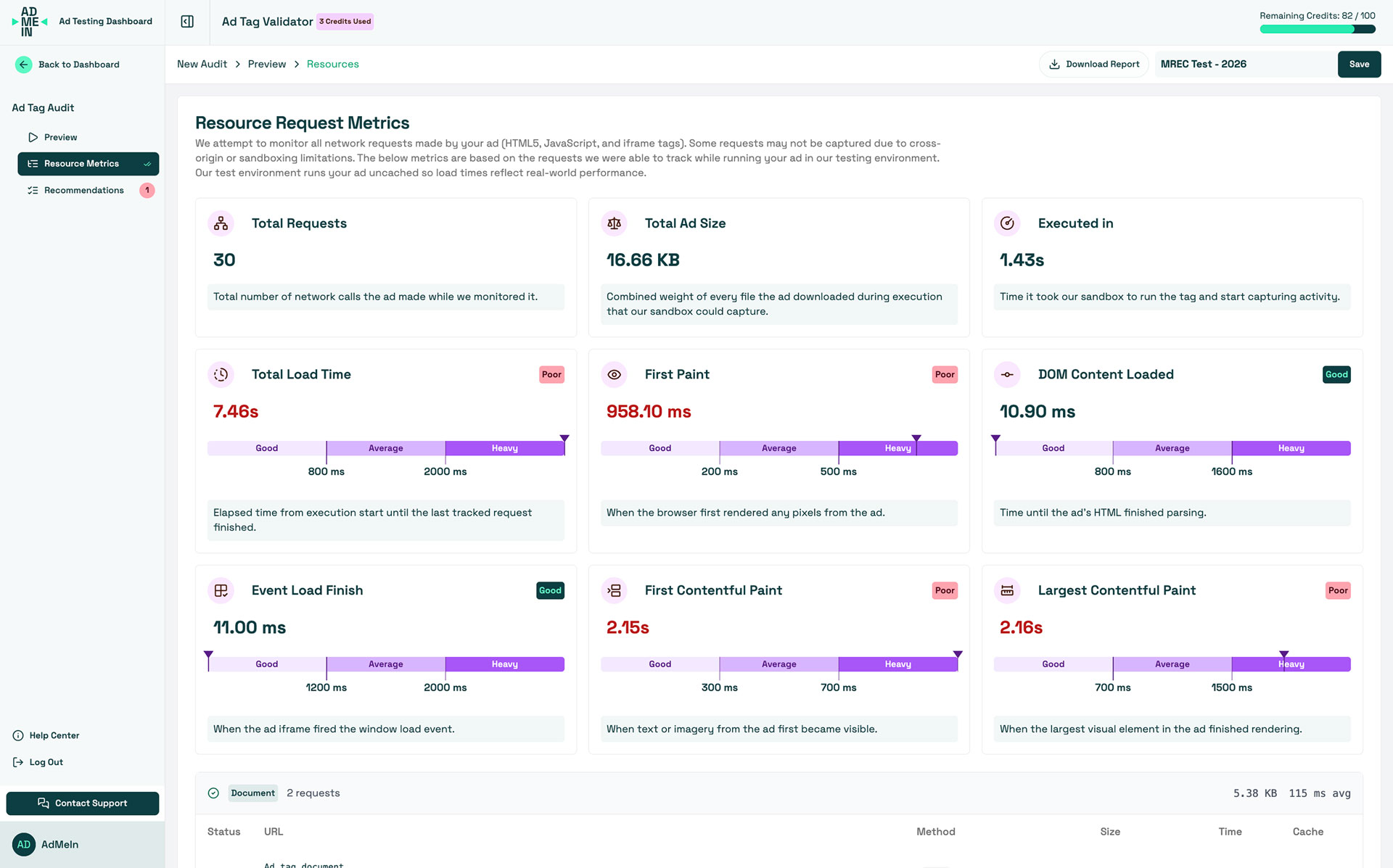
Resource Request Metrics
This section focuses on how the ad loads and paints in the browser. Numbers are based on what the sandbox can capture during execution.
Key metrics
- Total Requests: Count of all network calls triggered by the ad
- Total Ad Size: Combined weight of the resources captured during the audit
- Executed In: Time until the sandbox begins capturing activity
- Total Load Time: Time from execution start until the last request finishes
- First Paint / First Contentful Paint / Largest Contentful Paint: Rendering milestones that indicate perceived performance
- DOM Content Loaded / Load Event: Signals for when HTML parsing and load events complete
How to interpret them
- High request count usually means too many scripts, images, or tracking calls
- Large total size can exceed platform limits and slow render
- Slow paints indicate heavy assets or delayed rendering logic
Recommended Ad Policy Tests
These tests validate your ad against common IAB and platform requirements. Each test is marked with a status:
- Passed: The audit detected no issues for the rule
- Warning: Close to a limit or potential compliance risk
- Failed: Exceeds a limit or missing a required element
- Skipped: Not applicable for the tag type
Common checks
- HTTP Call Count: Ensures the total requests remain within policy thresholds
- Total File Size: Confirms the ad stays under max size (varies by platform)
- ad.size: Validates declared width and height for HTML tags
- clickTag Presence: Confirms click tracking variables are accessible
- HTTPS / Mixed Content: Flags non-secure resource loads
Resource Tables
Below the metrics, you will see tables listing each request. These tables help you identify:
- Large files: Any asset that dominates the total size
- Slow responses: Long request times that delay rendering
- Third-party calls: External domains that add latency or policy risk
Common Issues and Fixes
Too many requests
- Inline small assets or combine files
- Remove unused scripts or trackers
- Reduce third-party dependencies
Total size exceeds limits
- Compress images (WebP, optimized JPG/PNG)
- Minify JavaScript and CSS
- Split rich media into polite loading phases
clickTag warnings
- Ensure
clickTagis defined globally and used in the click handler - Avoid hardcoded landing URLs when the ad server should inject them
Mixed content warnings
- Update all URLs to HTTPS
- Replace insecure third-party libraries
Best Practices
- Keep request count low: Fewer requests load faster and reduce failure risk
- Stay under platform limits: Target 100-150KB for standard banners when possible
- Test across environments: Validate in AdMeIn and in your ad server preview tools
- Verify clickthrough: Confirm the ad opens the correct landing page
- Archive audit reports: Use the downloaded report for QA documentation
Related Resources
Need more help?
Check out our other help articles or contact support.